Quick Start
Translate your first manga page in 60 seconds. Follow these five steps and you will be reading translated manga immediately.
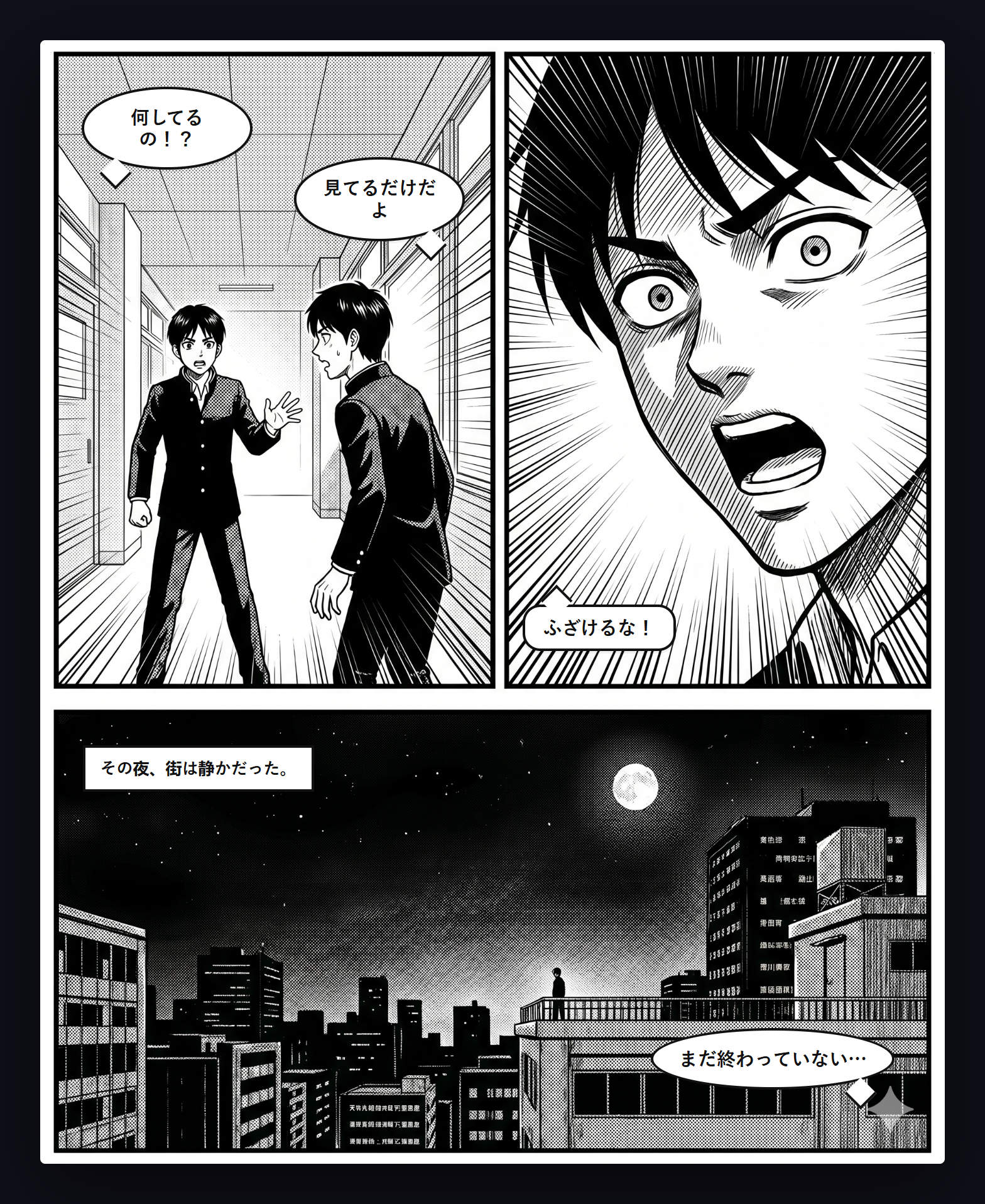
Step 1 — Open a Manga Page
Navigate to any manga reader website and open a chapter page with speech bubbles you want to translate. The extension works on any site that displays manga images — no special setup or site-specific configuration needed.
Step 2 — Press T to Translate
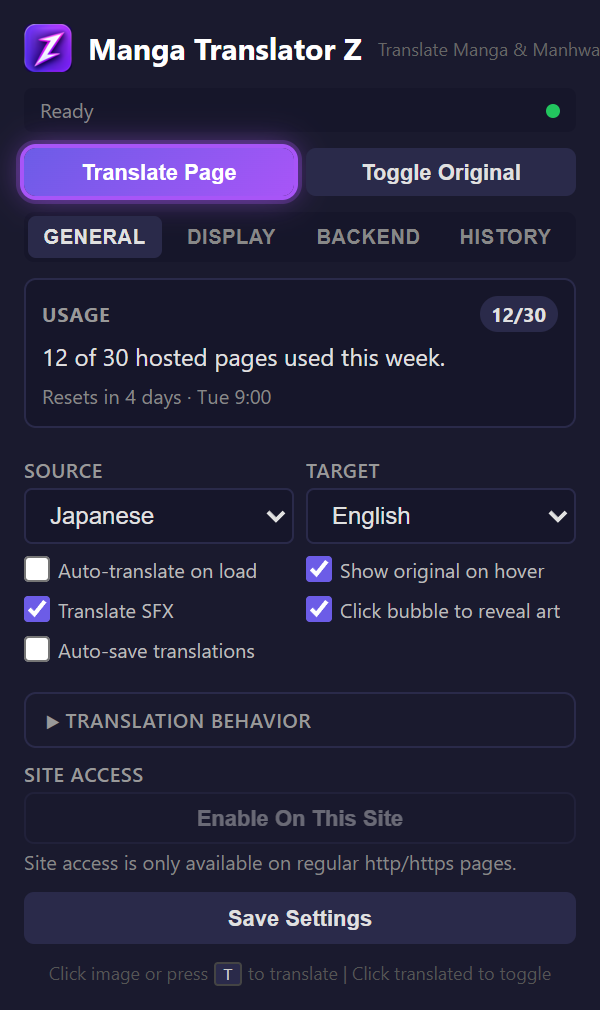
Press T on your keyboard. The extension will immediately start detecting and translating all speech bubbles on the page.
Alternatively, click the Manga Translator Z icon in your toolbar and press the Translate Page button in the popup.
The T shortcut only activates when there are manga images on the page. It will not interfere with typing in text fields or other browser shortcuts.
Step 3 — Watch the Translation Progress
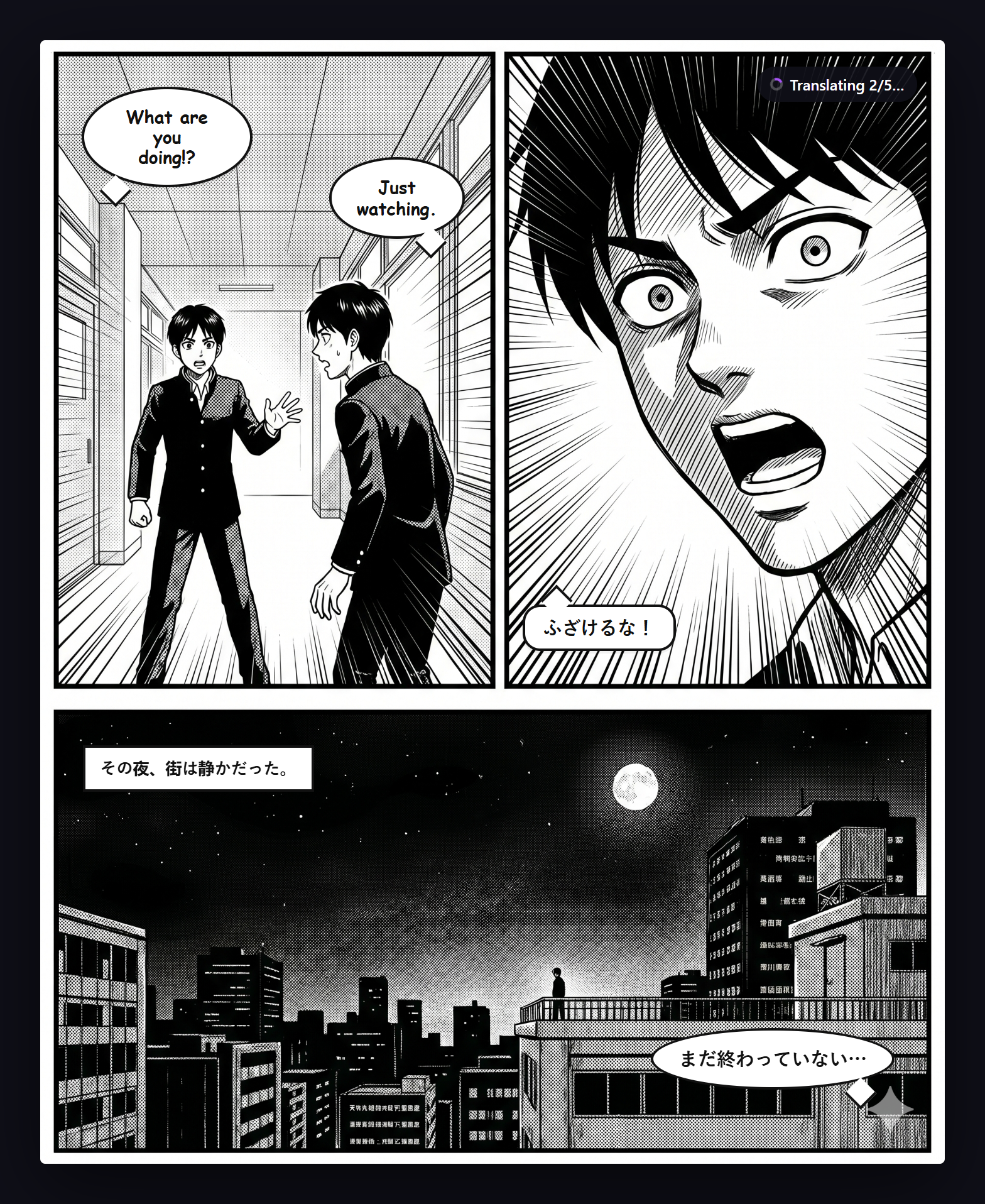
Once triggered, two things happen in sequence:
- Bubble detection — A local ONNX model scans each manga image and identifies speech bubble regions. This runs entirely in your browser with no network calls.
- Translation — Each detected bubble is sent to your configured AI backend (hosted server, OpenAI, or Ollama) for translation. A progress indicator appears over each image as it processes.
The translated text is rendered directly on top of the original bubbles using a manga-style font, replacing the Japanese, Korean, or Chinese text with your chosen target language.
Step 4 — Hover to See the Original
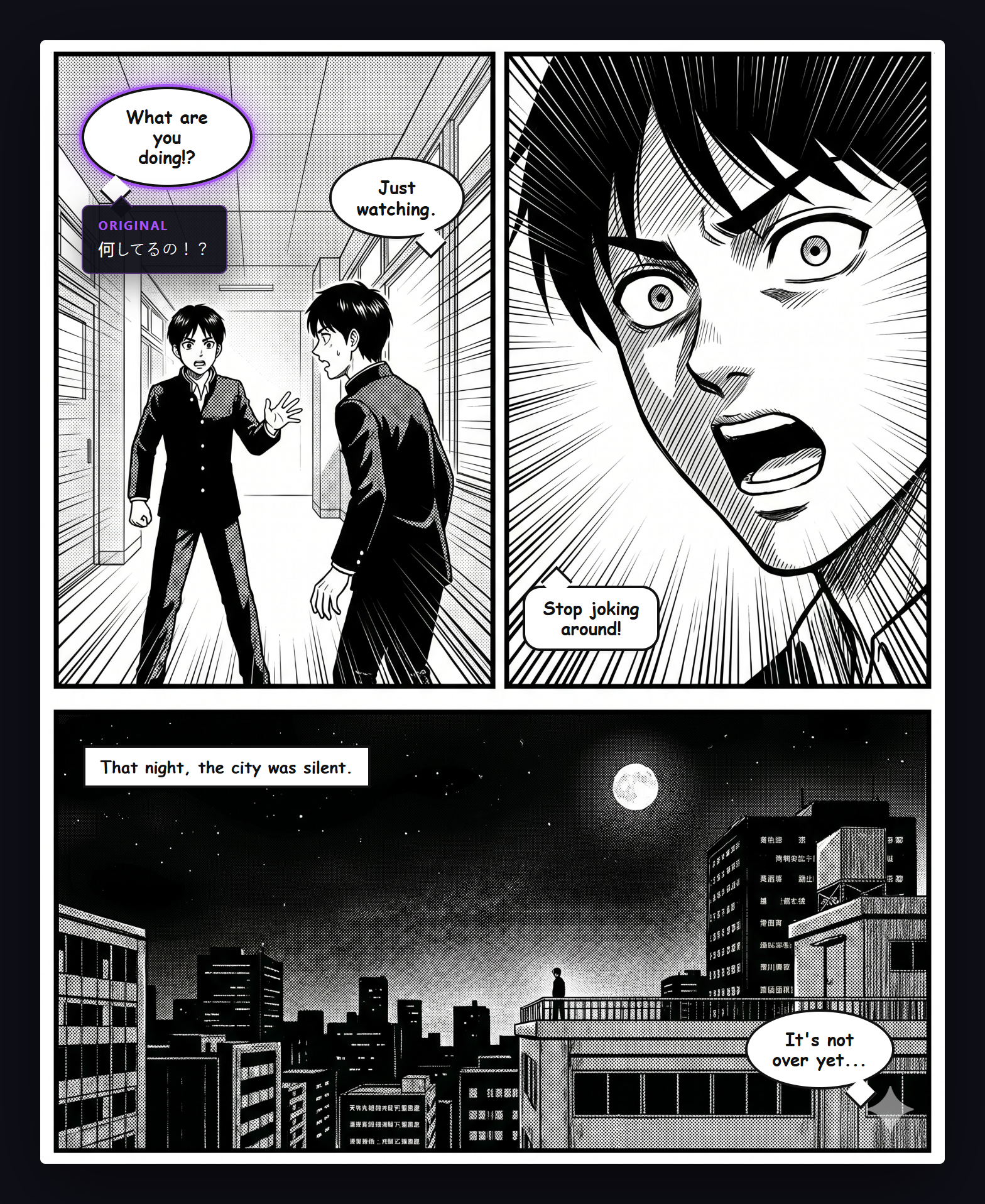
After translation completes, hover your mouse over any translated bubble to see the original text in a tooltip. This lets you check the source text whenever you want without toggling the entire translation off.
You can also click any translated bubble to temporarily reveal the original art underneath. Click again to restore the translation. This is useful for checking artwork details hidden behind the overlay.
Step 5 — Save the Translated Page
Press Shift+S to save the current page as a PNG image. The extension composites the original artwork with the translated overlay into a single downloadable image, saved to your Downloads folder.
You can also enable auto-save in the General tab of the extension popup to automatically save every translated page.
In five steps you: opened a manga page, translated all speech bubbles, viewed the original text on hover, toggled individual bubbles, and saved the result. That is the core workflow. Everything else in the documentation covers configuration, backends, and advanced features.
Next: Configure Your Backend
By default, Manga Translator Z is wired to our Hosted Server — so the steps above work immediately with no configuration. You can switch to another backend in the Backend tab if you want:
- Hosted Server (default, recommended) — Managed backend with a free weekly quota. Also self-hostable if you want to run it yourself. See the Hosted Server guide.
- OpenAI Vision — Bring your own OpenAI API key (BYOK). Pay per token, pick any GPT vision model. See the OpenAI Vision guide.
- Ollama — Run translation models entirely locally on your machine. 100% offline, no costs. See the Ollama guide.